
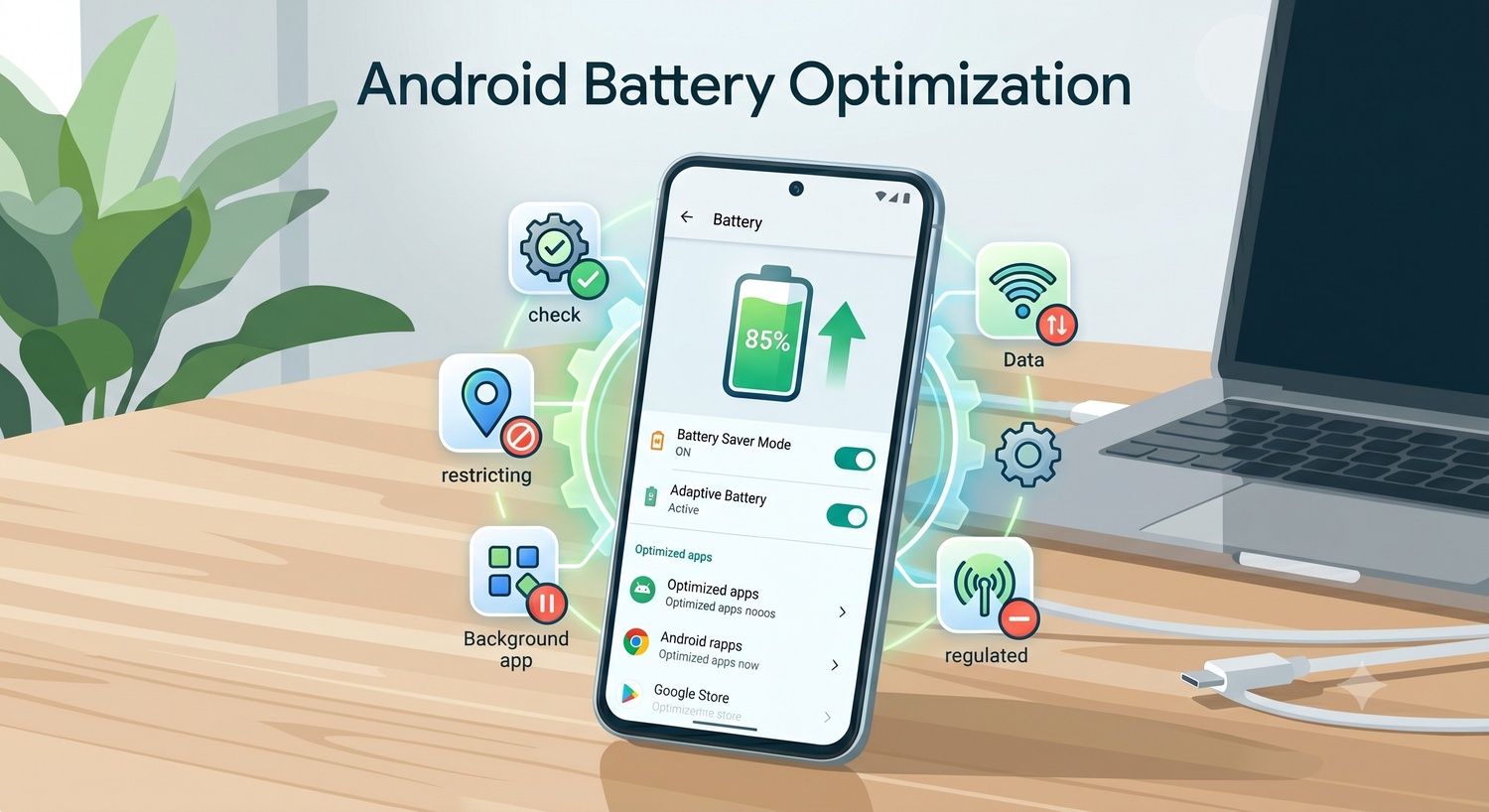
How to improve battery optimisation on Android without breaking your app
Battery optimisation on Android directly affects app performance, retention, and user reviews.
Users quickly notice apps that drain battery, overheat devices, or slow down everyday tasks, and
they rarely stay quiet about it.
For Android developers, improving battery life is not just about reducing power usage. It means
managing background work properly, limiting unnecessary wakeups, and building apps that feel
consistently fast and reliable across devices.
Background Work is the First Place to Look for Battery
Optimisation on Android
Most battery drain doesn’t come from what users see on screen. It comes from what your app
does when no one is watching.
Android recommends WorkManager for most background tasks, while JobScheduler is useful in specific cases. Custom timers, always-on services, and polling loops usually create worse battery outcomes because they ignore device state and system constraints. Custom timers, always-on services, and polling loops tend to produce worse battery outcomes because they ignore device state and system constraints entirely. This also affects how reliably your app performs over time.
On Android 14 and later, apps with frequent task timeouts risk being pushed into the restricted
standby bucket, which affects both battery behaviour and task delivery reliability.
WorkManager also supports Android’s Doze and App Standby model — system features that
defer background CPU and network activity when the device is idle or when an app hasn’t been
recently used. Designing for deferred execution from the start is far cleaner than retrofitting it
after complaints arrive.
Getting background architecture right is also a useful moment to revisit foundational structural
patterns — the kind of thinking explored in building robust Android apps with SOLID
principles.
Wake Locks Are a High-Priority Area for Battery
Optimisation on Android
What the threshold means in practice
Android Vitals treats excessive partial wake locks as a battery issue worth monitoring. If partial
wake locks run for 2 hours or more within 24 hours while the app runs in the background or
through a foreground service, Android flags the behaviour as excessive.
This affects more than just internal performance tracking. Starting from March 2026 onwards,
Google has said that titles that don’t meet the wake-lock quality threshold may be excluded from
prominent Google Play discovery surfaces, such as recommendations. That is a Google Playspecific policy, but it illustrates that battery misuse can carry real store-visibility consequences.
For apps in media, sync, messaging, or long-running service categories, wake-lock auditing
should sit near the top of any battery optimisation checklist.
Location and Wi-Fi Scanning Drain Battery Quietly
Two drains that are easy to miss in standard profiling
Location and Wi-Fi activity are frequent culprits in battery complaints, yet they’re often invisible
in basic UI profiling passes.
Android recommends removing location updates when they’re no longer needed, setting
timeouts, and using lifecycle-aware handling so updates stop when the relevant screen or
workflow ends. Background location is already throttled by the system, but poorly scoped
requests still waste power.
Background Wi-Fi scanning is a separate concern. Android Vitals flags excessive background
Wi-Fi scans because these scans wake the CPU and can noticeably shorten battery life,
especially for apps with network-discovery or connectivity features
Faster Startup Leads to Better App Performance Overall
Baseline Profiles and Startup Profiles
Faster startup reduces wasted CPU work, which has a knock-on effect on early-session battery
consumption. Android’s Baseline Profiles can improve code execution speed by about 30% from
first launch by pre-compiling critical code paths before users encounter them. For apps where
startup speed matters, Startup Profiles can go further — typically delivering 15%–30% faster
startup than Baseline Profiles alone, according to Android’s official guidance.
You don’t need a massive engineering team to implement these techniques. Generating and
bundling a Baseline Profile is a standard release workflow step that any team shipping a
production build can adopt.
Performance also begins with what users directly interact with. Clean, efficient UI code reduces
the rendering work the system needs to do, and the principles behind that connect directly to
UI/UX optimisation practices for a seamless Android app design.
Profile Before You Ship, Then Keep Watching After You
Publish
The right tools for the job
You can’t fix what you haven’t measured. Android Studio’s Power Profiler exposes on-device
power-consumption data during development, and Battery Historian is recommended by
Android’s quality guidelines for diagnosing drain in more complex scenarios. Google also
introduced the Android Performance Analyser in May 2026 as a broader profiling tool covering
battery and power alongside general app performance analysis.
Publishing and post-launch monitoring
Once you’re ready to ship, Indus Appstore supports AAB uploads as well as APK and APKS
formats, so you can validate optimised release builds across device variants before going live.
After publishing, the Indus developer platform surfaces app statistics, geographic and state-level
performance views, and download tracking. A well-optimised build combined with localised
listings can help your app perform more consistently across different regions and device types in
India.
Make Performance a Shipping Standard, Not a Patch
Battery optimisation on Android comes down to one consistent principle: do less unnecessary
work, and do the necessary work at the right time. That means choosing WorkManager for
background tasks, auditing wake locks against Android Vitals thresholds, scoping location and
Wi-Fi access tightly, and profiling before you release rather than after the reviews land.
Better app performance doesn’t just reduce complaints; it builds the kind of user trust that
supports retention over time. A polished and efficient app usually performs better with users than
one that drains battery or feels slow.
FAQs
What causes battery drain in Android apps?
Battery drain usually comes from unnecessary background activity, constant location tracking,
wake locks, and frequent network polling. Apps that continue running tasks after users leave the
screen often consume far more power than expected.
Is WorkManager better than foreground services?
For most background tasks, yes. WorkManager respects Android’s battery restrictions and
system states automatically. Foreground services are better suited for tasks users actively expect,
such as navigation, media playback, or ongoing calls.
Can startup speed affect battery life?
Yes. Slow startup increases CPU usage during launch, which can consume more power. Faster
startup flows reduce unnecessary processing and help apps feel more responsive from the first
interaction.
How do wake locks affect Android battery life?
Wake locks prevent devices from entering low-power states. If they remain active longer than
necessary, they can significantly increase battery drain, especially when apps continue running
tasks in the background.
What tools help test Android battery performance?
Android Studio’s Power Profiler and Battery Historian are widely used for battery testing. These
tools help developers identify excessive background activity, CPU usage, wake locks, and
network-related battery drain before release.
Does Doze mode affect background tasks?
Yes. Doze mode limits background CPU, network, and sync activity when devices remain idle.
Apps that are not designed around these restrictions may experience delayed task execution and
inconsistent background behaviour.
Can poor battery optimisation affect app ratings?
Definitely. Users quickly notice apps that overheat devices, drain battery, or slow down phones.
Poor performance often leads to negative reviews, lower retention, and reduced trust in the app
experience.
Should Android developers optimise apps for low-end devices?
Yes. Many Android users still rely on mid-range and budget devices with limited memory and
battery capacity. Efficient apps usually perform more consistently across different hardware
conditions and network environments.
Author

Indus Appstore Editor
With Indus Appstore Editor, explore the dynamic world of Indus Appstore through engaging content, insightful narratives, and an exclusive glimpse into our aspirations.